GC IMAGE - GC Image LCxLC Edition - User Guide 2026R2
New Features and Improvements in Version 2026
GC Image LCxLC Edition 2026 has many new features and improvements. See
the GC Image LCxLC Edition User Guide for full
documentation.
What's New in Version 2026 Release 2 (November 2026)
- Shimadzu .lcd Files: The latest Shimadzu LC and LC-MS
.lcd files can now be
imported directly. Only some older files still require Shimadzu
software to be installed. MS data is now imported as centroided
spectra by default.
- LECO ChromaTOF 5.x SMP Files: Profile-based
SMP files with MS data can
now be imported, in addition to PEG-based and signal-based SMP
files. Mass spectra are imported as nominal masses by default,
or as centroided spectra with the Convert Profile Data to
Centroid import option. When a file also contains other
detector signals, such as an FID, users can choose to import the
mass spectra or a signal.
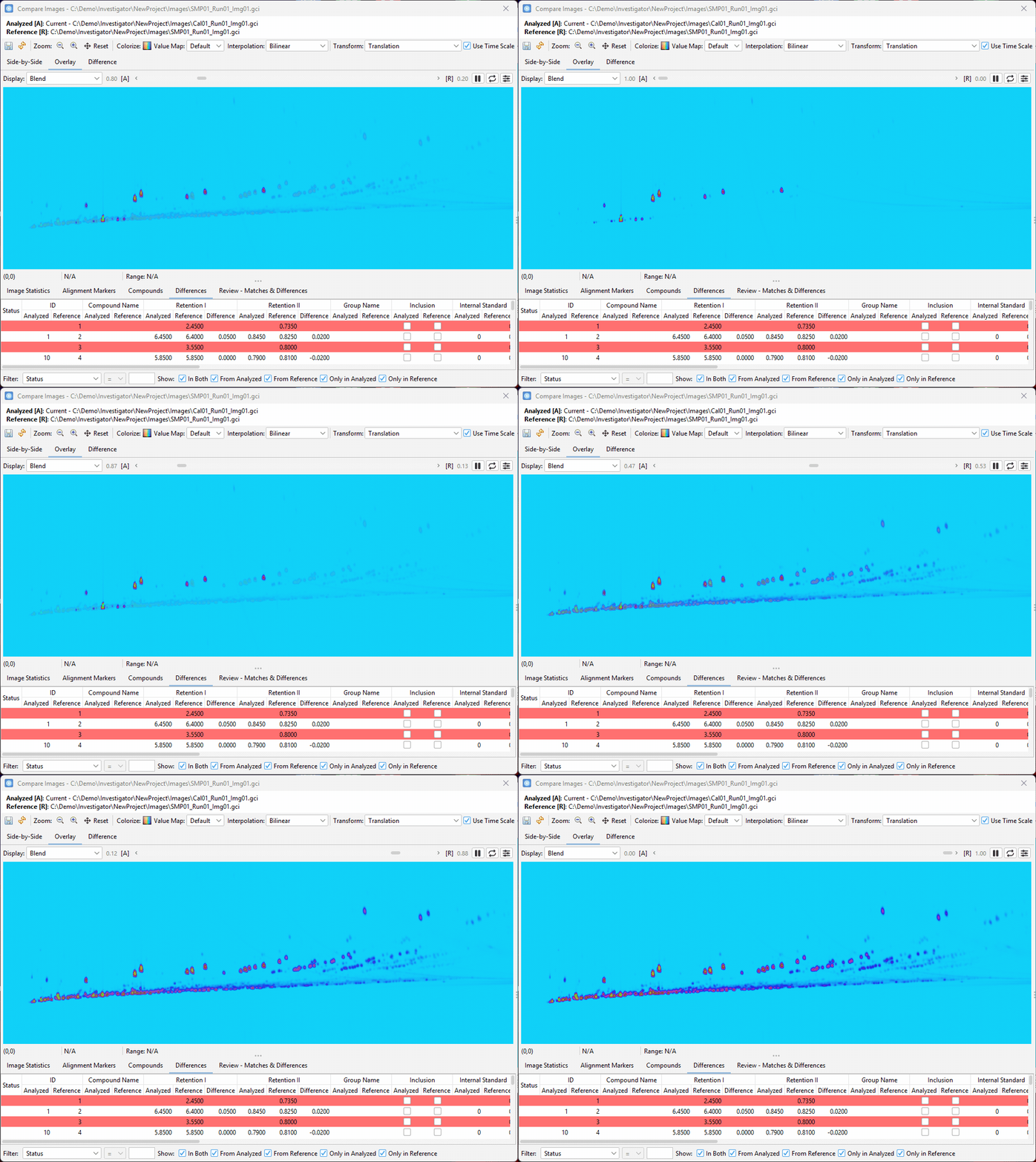
Version 2026R2 makes the side-by-side
Compare Images tool easier
to use and faster, with these improvements:
- Blend Display: The
Overlay View has a new
default Blend display that replaces the previous Flicker
and Transparent displays. The new display allows users to
quickly spot differences by blending between the analyzed and
reference images with the slider, toggling between the two
images, or playing an animation that flickers or fades between
them.
- Auto Detect Blobs: When an image has no blobs, Compare
Images can now detect blobs for the comparison with the current
blob detection settings, making it easier to compare raw,
unprocessed images. The Auto detect option in the new
Options panel is on by default.
- Only Use Peak Spectra: The new Only use peak
spectra option, on by default, compares compounds by their
peak spectra only, so comparisons load faster.
- Faster Matching: Matching all blobs between the analyzed
and reference images is now faster, especially for images with
many blobs.
 |
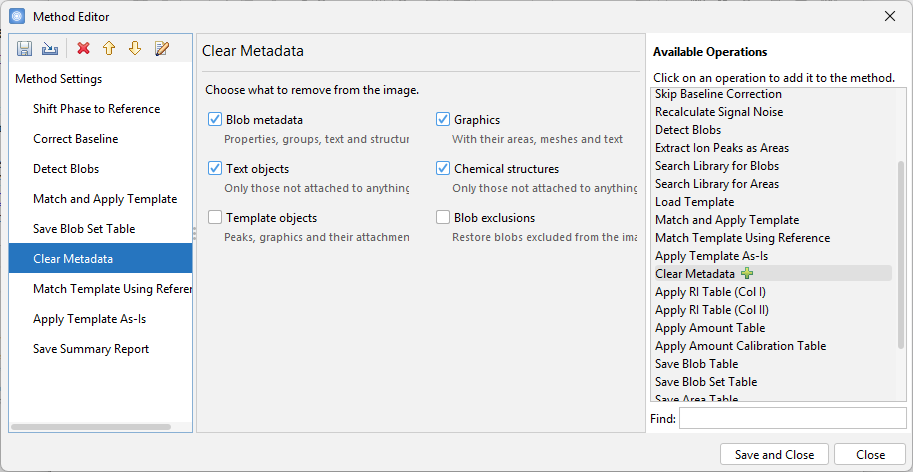
Version 2026R2 introduces a selective
Clear Metadata operation
and grouped operation history, making it easier to build
multi-stage methods or workflows that reprocess an image and to
review processing steps in groups.
- Choose What to Clear: A new options dialog allows users
to choose what to remove from the image: blob metadata,
graphics, text objects, chemical structures, template objects,
and blob exclusions. Excluded blobs, such as those from column
bleed and the solvent front, are now kept by default, so users can prepare an
image for reprocessing, such as applying another template,
without losing their blob filtering.
- Easy Access and Method Support: Clear Metadata is now
available from the Edit menu as well as the
toolbar. The same choices are also available in a new
Clear Metadata method
command, so a method can clear the results of one processing
stage before starting the next.
- Grouped Operations in Journals: The
List Operations
dialog now groups operations that are undone together as a
single step into one expandable row that shows the individual
operations, making processing steps easier to review.
Version 2026R2 has other improved operations, including:
- Faster Blob Deletion and Exclusion: Deleting or
excluding a large selection of blobs, such as all blobs of an
image with many detected peaks, is now much faster with
Edit > Delete/Exclude (and its toolbar button) and with
Edit > Exclude Blobs in Shape. Undoing these operations
is also much faster.
- Faster Integrated Spectra: Displaying the
integrated spectra of blobs is
faster.
- Better Support for Non-English Text: Text objects, the
metadata legend, and axis labels now display non-English
characters, such as Chinese characters, without selecting a
special font.
- NIST Auto Locate: Finding the NIST MS Search
installation is now more reliable when multiple NIST versions are
installed. Auto Locate
now lists all installations found so users can choose which one
to use.
- Delete/Exclude in the Edit Menu: The
Delete/Exclude action is now available from the
Edit menu as well as the toolbar.
- Shift Phase to Reference Remembers Its Settings:
Shift Phase to
Reference now remembers the last-used reference image and
regions. Its file chooser dialog also includes new
Recent and Default shortcuts for quick navigation
and selection.
- Project Import Files: The file chooser for
Import Files is easier
to use and has better support for files with
long paths.
What's New in Version 2026 Release 1 (July 2026)
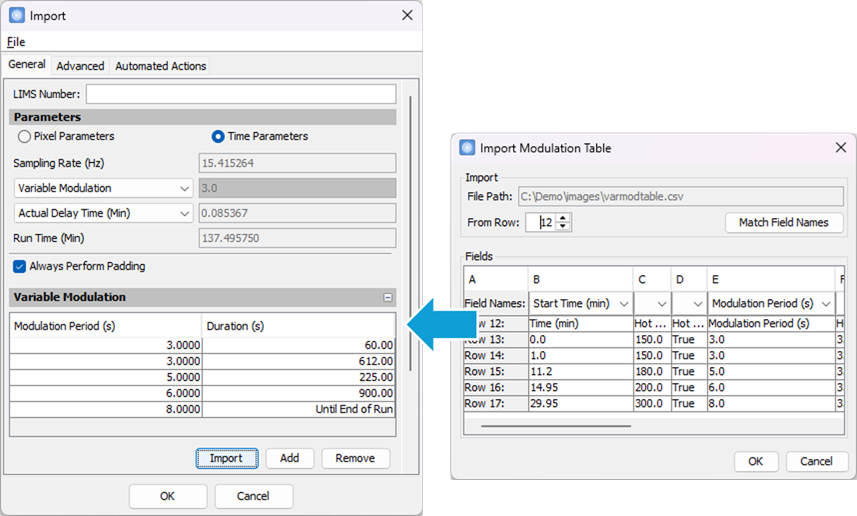
Version 2026R1 adds support for extracting the variable modulation table
from a CSV or Excel file during data import. The enhanced import
function can generate the table by parsing Start Time or
Duration columns together with a Modulation Period
column, and performing all required time-unit conversions. This
improvement allows modulation periods produced by other
software to be brought in without manual re-entry, greatly
streamlining setup for variable modulation workflows.
Version 2026R1 introduces support for the latest NIST 2026 Mass
Spectral Library and Search software, along with
improvements that make library search
operations with NIST work more reliably and smoothly.
- NIST26 Demo Support: The software now supports
NIST26 demonstration versions in addition to the full NIST26
versions.
- More Reliable Spectrum Retrieval: When
retrieving spectra for identified NIST compounds, the
software now checks both main and replicate
libraries. This ensures spectra can still be found even when
compound entries have moved between these libraries across
NIST versions.
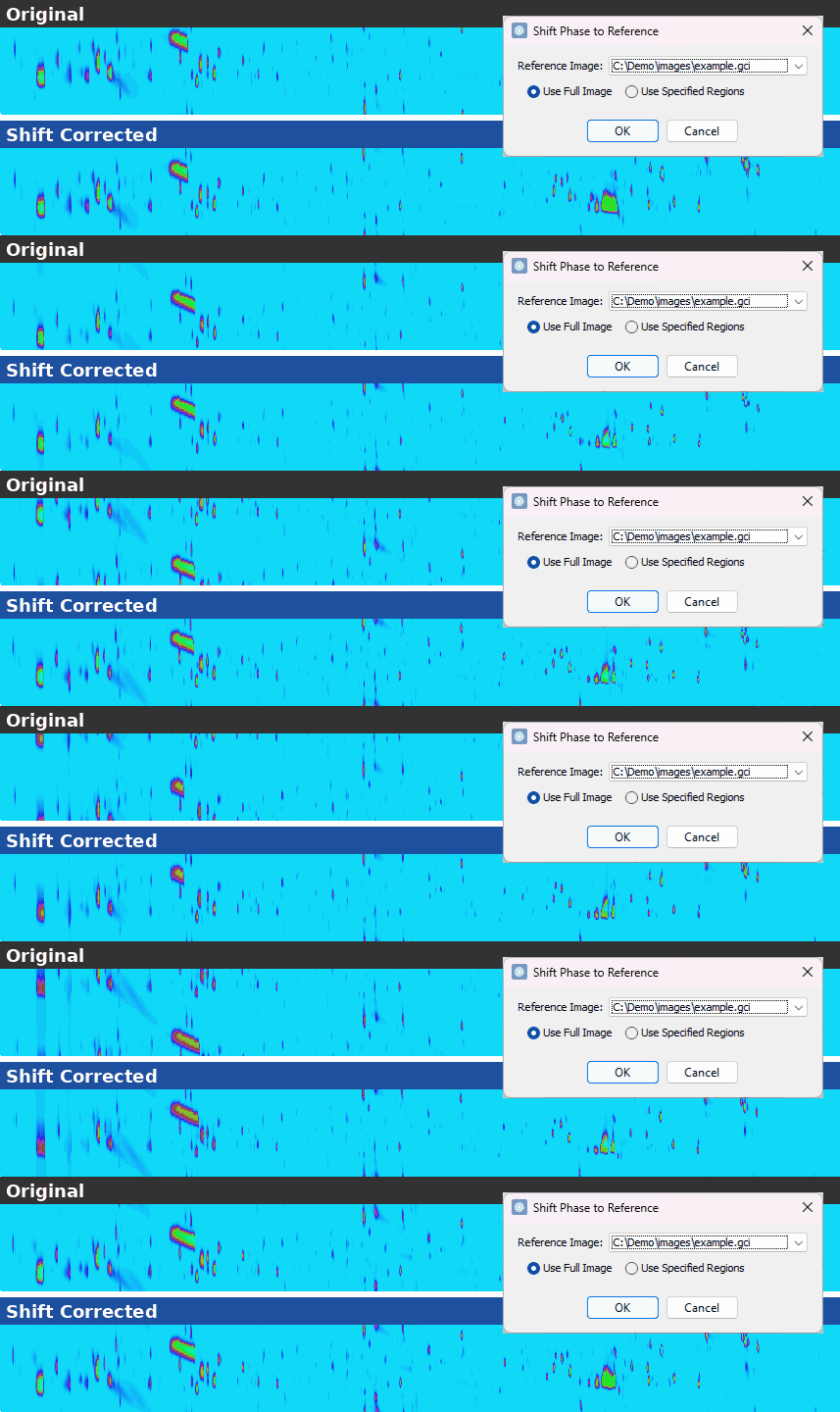
Version 2026R1 introduces a new Processing >
Shift Phase to Reference action that uses computer vision to
automatically determine the phase shift needed to align the
image with a reference image. This eliminates the repetitive
manual adjustments sometimes required when aligning large sets
of images.
- Full Image or Specified Regions: Match against
the entire reference image, or restrict the comparison to
regions defined by retention-time ranges or named graphical
regions.
- Guided Comparison: If a reliable shift cannot be
determined automatically, the software offers to compare the
image against the reference.
- Automated Workflows: The operation is
available as a method
command that can be included in automated workflows.
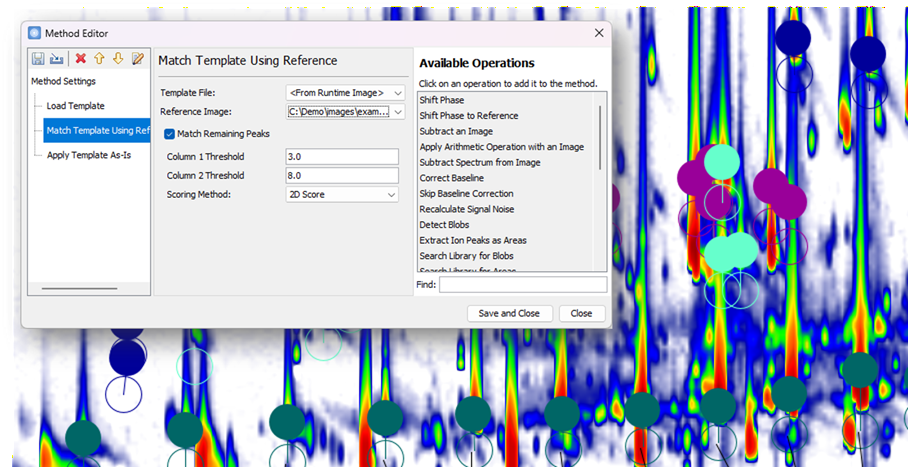
Version 2026R1 introduces a new computer-vision-based peak
matching algorithm that aligns template peaks with the current
chromatogram based on peak patterns in a reference image. This
provides more reliable matching in chromatograms affected by
significant retention time drift or complex matrices, reducing
the manual effort typically required.
- Interactive Match Support: A Match
Using Reference action is now available in the Interactive
Match and Transform dialog. This action matches template
peaks to the current chromatogram using a selected reference
image.
- Automated Method Support: A new Match
Template Using Reference method
command is now available, including an option to match
remaining peaks using guidance from the initial
reference-based match, for automated workflows.
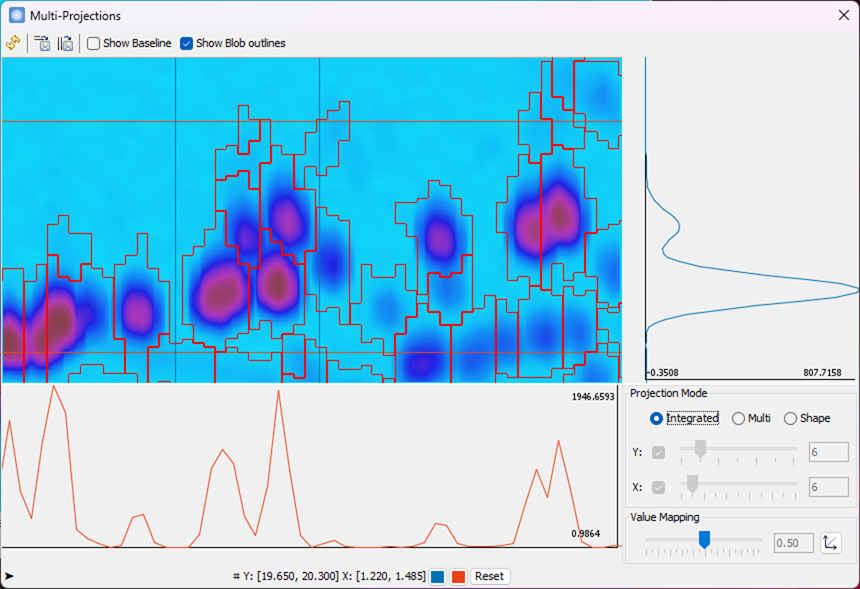
Version 2026R1 now includes a reworked Multi-Projections
view that is more interactive and easier to use.
- Non-Blocking View: Like the 1D view,
Multi-Projections now stays open while work continues in the
Image
View. It follows the active image and updates
automatically as that linked image view is zoomed or
navigated.
- Refined Blob Outline Display: Blob outlines now
use a thin, precise stroke for improved clarity.
- Improved Status Display: The status bar now
shows the center location or selection range of the
projection lines for clearer feedback.
- Updated Toolbar: A new toolbar has the refresh
button, save controls, and display settings for easy access.
- Improved Saving: Saving a projection now uses
the current viewport region by default, with options to save
the full image range or to include the axis values.
 |
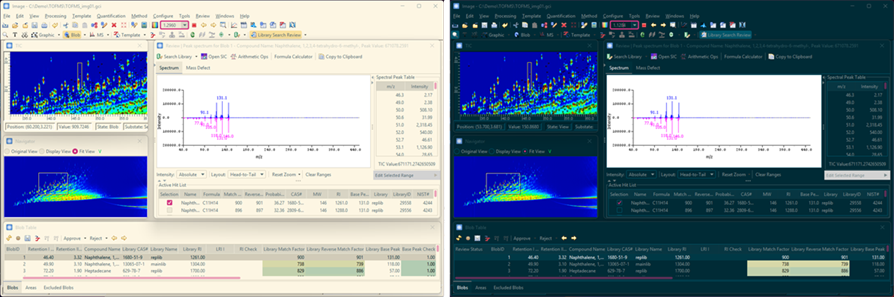
Version 2026R1 introduces new Solarized light and dark
themes, replacing the older Nimbus theme and providing a
cleaner, more comfortable visual experience, especially in
night-time or low-light environments. Themes can be selected
from the System - Look and Feel setting through Configure >
Settings.
- Light and Dark Themes: Choose between Solarized
light and dark themes to suit different working environments.
- Consistent Appearance: Controls throughout the
software, including the color selectors, property dialogs,
image axes, tables, and color legends, were updated to
display correctly with the selected theme. Additional
refinements will be released in future updates.
Version 2026R1 has other improved operations, including:
- Internal Standard Name Validation: A warning now
appears when an internal standard (ISTD) quantifier
name is empty or collides with the compound name of the
owner blob or area, helping prevent naming issues before
building a calibration table.
- Import Steps from Another Method: A new Import button
in the Method Editor tool bar
imports all, or only the selected, operation steps from an existing
method, allowing complex steps to be reused across methods.
- Apply Template As-Is Command: A new Apply Template
As-Is method command applies the template without
modification and can be combined with other
template matching commands to support more complex
workflows.
- Redesigned Incident Report Submission:
The Incident Report
submission has been updated with a new interface that allows
selecting from any available log file. Reports are now submitted
through an online webpage opened directly by the software.
Contents
Next: Introduction
GC Image™ LCxLC Edition User Guide ©
2001–2026 by GC Image, LLC, and the University of Nebraska.